> ## Documentation Index
> Fetch the complete documentation index at: https://docs.upwell.com/llms.txt
> Use this file to discover all available pages before exploring further.
# Carrier Payables Screen
> Learn how to manage and process carrier invoices using the payables screen
## Overview
The carrier payables screen is your central hub for managing carrier invoices and payments.
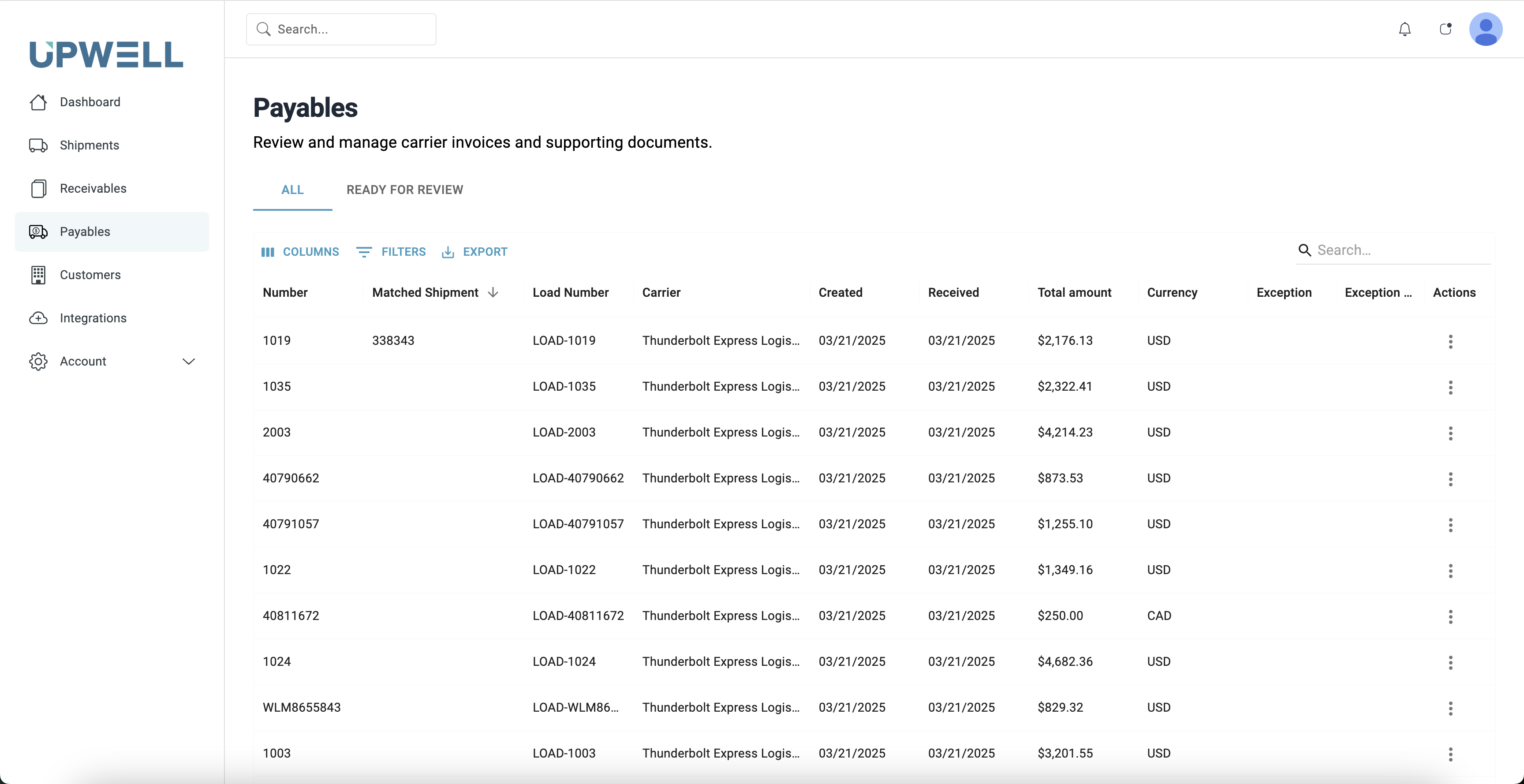 ## Key Features
The main grid displays all carrier invoices with key information:
* Invoice number and date
* Carrier name
* Total amount
* Status (New, Validated, Exception, Approved)
* Match status with TMS shipments
{' '}
Quickly find specific invoices using: - Date range filters - Carrier filters -
Status filters - Search by invoice number, BOL, or PRO number - Advanced
filtering options
Process invoices efficiently with these actions:
* View invoice details and attached documents
* Match invoices to shipments
* Review and approve exceptions
* Bulk approve validated invoices
* Export data for payment processing
## Common Tasks
### Reviewing New Invoices
1. Filter the list to show "New" status invoices
2. Review automatically matched shipments
3. Verify rates and accessorials
4. Approve or flag for exception handling
### Handling Exceptions
1. Navigate to the "Exceptions" tab 2. Select an invoice to review 3. Compare
invoice details against TMS data 4. Add notes or supporting documentation 5.
Resolve or escalate the exception
## Best Practices
Check new invoices daily to maintain consistent cash flow
{' '}
Address exceptions promptly to prevent payment delays
{' '}
Always add notes for non-standard approvals
Export approved invoices on a set schedule
## Key Features
The main grid displays all carrier invoices with key information:
* Invoice number and date
* Carrier name
* Total amount
* Status (New, Validated, Exception, Approved)
* Match status with TMS shipments
{' '}
Quickly find specific invoices using: - Date range filters - Carrier filters -
Status filters - Search by invoice number, BOL, or PRO number - Advanced
filtering options
Process invoices efficiently with these actions:
* View invoice details and attached documents
* Match invoices to shipments
* Review and approve exceptions
* Bulk approve validated invoices
* Export data for payment processing
## Common Tasks
### Reviewing New Invoices
1. Filter the list to show "New" status invoices
2. Review automatically matched shipments
3. Verify rates and accessorials
4. Approve or flag for exception handling
### Handling Exceptions
1. Navigate to the "Exceptions" tab 2. Select an invoice to review 3. Compare
invoice details against TMS data 4. Add notes or supporting documentation 5.
Resolve or escalate the exception
## Best Practices
Check new invoices daily to maintain consistent cash flow
{' '}
Address exceptions promptly to prevent payment delays
{' '}
Always add notes for non-standard approvals
Export approved invoices on a set schedule