> ## Documentation Index
> Fetch the complete documentation index at: https://docs.upwell.com/llms.txt
> Use this file to discover all available pages before exploring further.
# Authentication
> Learn how to authenticate your requests to the Upwell API
## API Key Authentication
All requests to the Upwell API must be authenticated using your API key.
The key should be included in the `Authorization` header of each request.
 ### Getting Your API Key
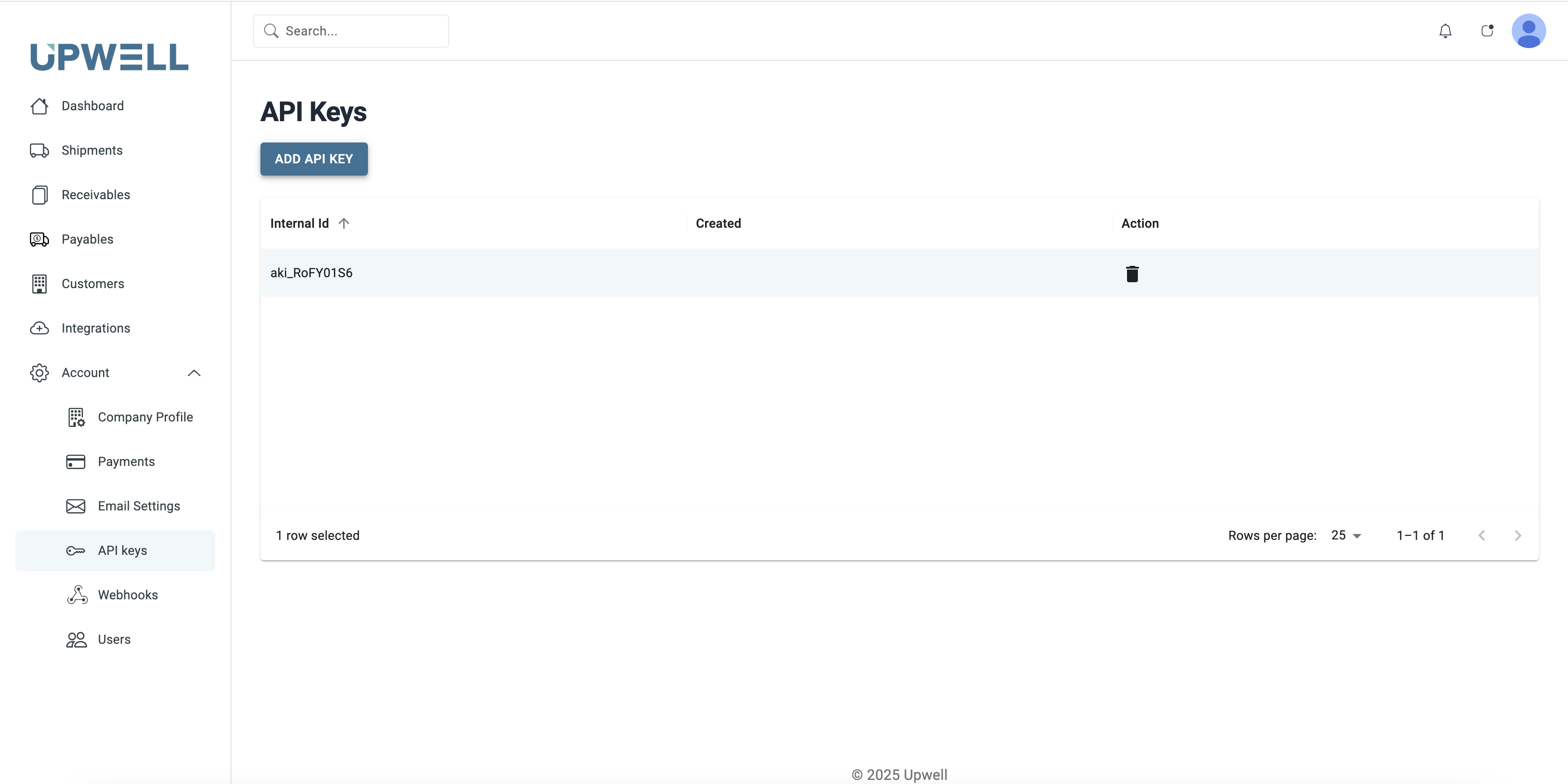
1. Log into your Upwell dashboard 2. Navigate to Settings → API Keys 3. Click
"Generate New API Key" 4. Copy and securely store your API key
API keys are sensitive credentials. Never share your API key or commit it to
version control. If your key is compromised, generate a new one immediately
and revoke the old key.
### Using Your API Key
Include your API key in the `Authorization` header of all API requests:
```bash theme={null}
curl https://api.upwell.com/api/rest/invoices \
-H "Authorization: YOUR_API_KEY"
```
### Example Requests
```javascript theme={null}
// Using fetch
fetch('https://api.upwell.com/api/rest/invoices', {
headers: {
Authorization: 'YOUR_API_KEY',
},
});
```
```python theme={null}
# Using requests
import requests
headers = {
'Authorization': 'YOUR_API_KEY'
}
response = requests.get('https://api.upwell.com/api/rest/invoices', headers=headers)
```
### Getting Your API Key
1. Log into your Upwell dashboard 2. Navigate to Settings → API Keys 3. Click
"Generate New API Key" 4. Copy and securely store your API key
API keys are sensitive credentials. Never share your API key or commit it to
version control. If your key is compromised, generate a new one immediately
and revoke the old key.
### Using Your API Key
Include your API key in the `Authorization` header of all API requests:
```bash theme={null}
curl https://api.upwell.com/api/rest/invoices \
-H "Authorization: YOUR_API_KEY"
```
### Example Requests
```javascript theme={null}
// Using fetch
fetch('https://api.upwell.com/api/rest/invoices', {
headers: {
Authorization: 'YOUR_API_KEY',
},
});
```
```python theme={null}
# Using requests
import requests
headers = {
'Authorization': 'YOUR_API_KEY'
}
response = requests.get('https://api.upwell.com/api/rest/invoices', headers=headers)
```