> ## Documentation Index
> Fetch the complete documentation index at: https://docs.upwell.com/llms.txt
> Use this file to discover all available pages before exploring further.
# Navigation Guide
> Understanding the Upwell dashboard navigation and main sections
## Main Navigation Overview
The Upwell application features a collapsible sidebar navigation that provides access
to all platform sections. The navigation is organized into logical groups based on
functionality.
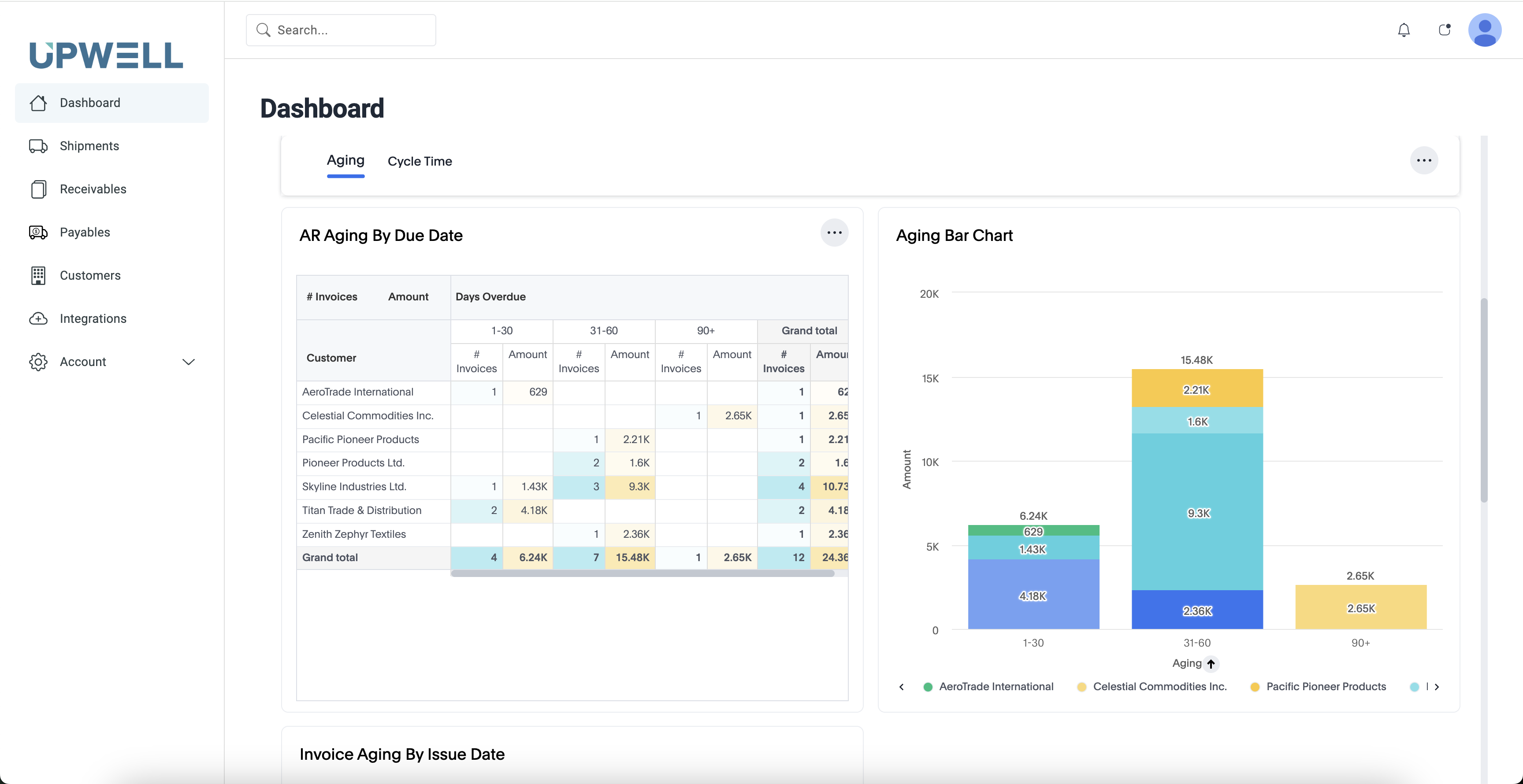 ## Core Navigation Sections
### Main Operations
**Location**: `/`
**Purpose**: Central hub showing key metrics and system overview
**Features**:
```text theme={null}
- Configurable dashboard views (operational dashboard and embedded Trevor analytics)
- Key performance indicators
- Quick access to recent activities
- System health monitoring
```
**Access**: Available to all user roles
**Location**: `/shipments`
**Purpose**: Transportation and logistics tracking
**Features**:
```text theme={null}
- Shipment status tracking
- Document management
- TMS integration data
- Logistics coordination
```
**Access**: Controlled by user permissions
**Location**: `/invoices`
**Purpose**: Customer billing and accounts receivable management
**Features**:
```text theme={null}
- Customer invoice processing
- Payment tracking
- Collections management
- Billing workflows
```
**Access**: AR-focused roles and administrators
**Location**: `/carrier-invoices`
**Purpose**: Carrier invoice and payables processing
**Features**:
```text theme={null}
- Carrier invoice automation
- Document processing
- Approval workflows
- Payment processing
```
**Access**: AP-focused roles and administrators
### Data Management
**Location**: `/carriers`
**Purpose**: Carrier relationship and data management
**Features**:
```text theme={null}
- Carrier profiles
- Contract management
- Performance tracking
- Payment terms
```
**Location**: `/customers`
**Purpose**: Customer profile and relationship management
**Features**:
```text theme={null}
- Customer profiles
- Credit management
- Payment history
- Billing preferences
```
**Location**: `/email`
**Purpose**: Email processing and communication management
**Features**:
```text theme={null}
- Inbound email processing
- Document extraction
- Communication history
- Email workflows
```
**Location**: `/transactions`
**Purpose**: Financial transaction tracking and management
**Features**:
```text theme={null}
- Transaction history
- Payment tracking
- Financial reconciliation
- Audit trails
```
### Workflow Settings
**Purpose**: System configuration and workflow management
**Sub-sections**:
```text theme={null}
- Templates (/workflow-settings/templates) - Document and email templates
- Reminders (/workflow-settings/reminder-schedule) - Automated reminder scheduling
- Documents (/workflow-settings/documents) - Document processing rules
- Rules (/workflow-settings/rules) - Business logic and automation rules
- Delivery (/workflow-settings/delivery) - Document delivery preferences
- Payables (/workflow-settings/payables) - Payables workflow configuration
```
**Access**: Administrative roles with configuration permissions
**Location**: `/integrations`
**Purpose**: Third-party system integrations
**Features**:
```text theme={null}
- TMS connections
- API integrations
- Data synchronization
- Integration monitoring
```
### Account Management
**Purpose**: Organization and user account management
**Sub-sections**:
```text theme={null}
- Company Profile - Organization details and settings
- Payments - Payment method and billing configuration
- Email Settings - Email processing and delivery configuration
- API Keys - API access management
- Users - User management and permissions
- AI Custom Instructions - Custom AI processing instructions
```
**Access**: Administrative and owner roles
### System Administration
**Purpose**: System-level administration and monitoring
**Features**:
```text theme={null}
- AI Prompts management
- AI Processing Events monitoring
- System evaluations
- Factor management
- CSV processing tools
- Tenant SCAC codes
- GL codes management
- EDI review tools
```
**Access**: SYSADMIN role only
## Navigation Features
### Sidebar Behavior
* **Collapsible Design**: Click the menu icon to collapse/expand the sidebar
* **Mobile Responsive**: Automatically adapts to mobile devices
* **Visual Indicators**: Active page highlighting and clear navigation state
* **Tooltips**: Helpful tooltips when sidebar is collapsed
### Feature Flags
The navigation system uses feature flags to control which sections are visible to users:
* Different features can be enabled/disabled per organization
* Gradual rollout of new functionality
* Role-based feature access control
### Keyboard Navigation
* **Tab Navigation**: Full keyboard accessibility
* **Shortcuts**: Quick access to main sections
* **Screen Reader Support**: Full accessibility compliance
## Tips for Efficient Navigation
1. **Use Bookmarks**: Bookmark frequently accessed pages
2. **Keyboard Shortcuts**: Learn keyboard shortcuts for faster navigation
3. **Collapse Sidebar**: Collapse sidebar for more screen space when working with data
4. **Mobile Access**: All features available on mobile devices with responsive design
## Getting Help
If you need assistance with navigation or access to specific sections, contact your system administrator or [support team](mailto:support@upwell.com).
## Core Navigation Sections
### Main Operations
**Location**: `/`
**Purpose**: Central hub showing key metrics and system overview
**Features**:
```text theme={null}
- Configurable dashboard views (operational dashboard and embedded Trevor analytics)
- Key performance indicators
- Quick access to recent activities
- System health monitoring
```
**Access**: Available to all user roles
**Location**: `/shipments`
**Purpose**: Transportation and logistics tracking
**Features**:
```text theme={null}
- Shipment status tracking
- Document management
- TMS integration data
- Logistics coordination
```
**Access**: Controlled by user permissions
**Location**: `/invoices`
**Purpose**: Customer billing and accounts receivable management
**Features**:
```text theme={null}
- Customer invoice processing
- Payment tracking
- Collections management
- Billing workflows
```
**Access**: AR-focused roles and administrators
**Location**: `/carrier-invoices`
**Purpose**: Carrier invoice and payables processing
**Features**:
```text theme={null}
- Carrier invoice automation
- Document processing
- Approval workflows
- Payment processing
```
**Access**: AP-focused roles and administrators
### Data Management
**Location**: `/carriers`
**Purpose**: Carrier relationship and data management
**Features**:
```text theme={null}
- Carrier profiles
- Contract management
- Performance tracking
- Payment terms
```
**Location**: `/customers`
**Purpose**: Customer profile and relationship management
**Features**:
```text theme={null}
- Customer profiles
- Credit management
- Payment history
- Billing preferences
```
**Location**: `/email`
**Purpose**: Email processing and communication management
**Features**:
```text theme={null}
- Inbound email processing
- Document extraction
- Communication history
- Email workflows
```
**Location**: `/transactions`
**Purpose**: Financial transaction tracking and management
**Features**:
```text theme={null}
- Transaction history
- Payment tracking
- Financial reconciliation
- Audit trails
```
### Workflow Settings
**Purpose**: System configuration and workflow management
**Sub-sections**:
```text theme={null}
- Templates (/workflow-settings/templates) - Document and email templates
- Reminders (/workflow-settings/reminder-schedule) - Automated reminder scheduling
- Documents (/workflow-settings/documents) - Document processing rules
- Rules (/workflow-settings/rules) - Business logic and automation rules
- Delivery (/workflow-settings/delivery) - Document delivery preferences
- Payables (/workflow-settings/payables) - Payables workflow configuration
```
**Access**: Administrative roles with configuration permissions
**Location**: `/integrations`
**Purpose**: Third-party system integrations
**Features**:
```text theme={null}
- TMS connections
- API integrations
- Data synchronization
- Integration monitoring
```
### Account Management
**Purpose**: Organization and user account management
**Sub-sections**:
```text theme={null}
- Company Profile - Organization details and settings
- Payments - Payment method and billing configuration
- Email Settings - Email processing and delivery configuration
- API Keys - API access management
- Users - User management and permissions
- AI Custom Instructions - Custom AI processing instructions
```
**Access**: Administrative and owner roles
### System Administration
**Purpose**: System-level administration and monitoring
**Features**:
```text theme={null}
- AI Prompts management
- AI Processing Events monitoring
- System evaluations
- Factor management
- CSV processing tools
- Tenant SCAC codes
- GL codes management
- EDI review tools
```
**Access**: SYSADMIN role only
## Navigation Features
### Sidebar Behavior
* **Collapsible Design**: Click the menu icon to collapse/expand the sidebar
* **Mobile Responsive**: Automatically adapts to mobile devices
* **Visual Indicators**: Active page highlighting and clear navigation state
* **Tooltips**: Helpful tooltips when sidebar is collapsed
### Feature Flags
The navigation system uses feature flags to control which sections are visible to users:
* Different features can be enabled/disabled per organization
* Gradual rollout of new functionality
* Role-based feature access control
### Keyboard Navigation
* **Tab Navigation**: Full keyboard accessibility
* **Shortcuts**: Quick access to main sections
* **Screen Reader Support**: Full accessibility compliance
## Tips for Efficient Navigation
1. **Use Bookmarks**: Bookmark frequently accessed pages
2. **Keyboard Shortcuts**: Learn keyboard shortcuts for faster navigation
3. **Collapse Sidebar**: Collapse sidebar for more screen space when working with data
4. **Mobile Access**: All features available on mobile devices with responsive design
## Getting Help
If you need assistance with navigation or access to specific sections, contact your system administrator or [support team](mailto:support@upwell.com).